


Check for a steady recording LED, confirm with the companion app or quick playback.
I’ve spent years testing and using dash cams in cars, and I’ll walk you through how to know if dash cam is recording while driving. This guide breaks down simple visual cues, app checks, and quick playback methods so you can be sure your drive is captured. You’ll get step-by-step checks, common issues and fixes, and practical tips I learned from real-world use. Read on to gain confidence that your dash cam is actually recording while you drive.

How dash cams indicate they are recording
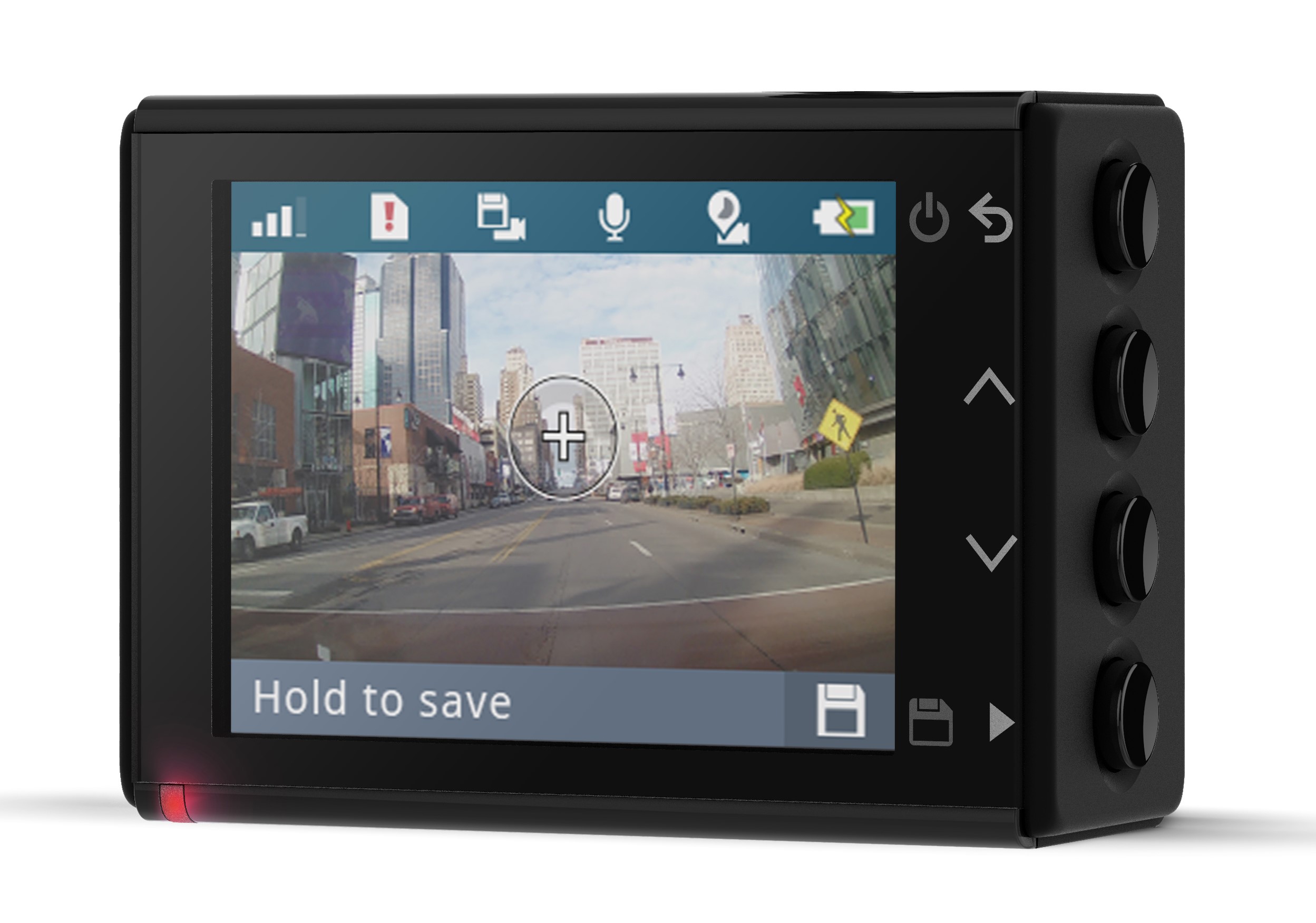
Most dash cams use clear, simple signals to show they are recording while driving. Look for a steady light on the camera. A solid LED usually means active recording, while a blinking LED often means standby or loop overwriting.
Many modern dash cams pair with a phone app. The app shows live view and recording status in real time. If the app shows a red dot or “REC,” that confirms the dash cam is recording while driving.
Some models show an on-screen timestamp or a small “REC” icon in the camera view. When you see a timestamp updating, that is a strong sign the device is recording. If you need reassurance, press the app record button and watch the indicator change.
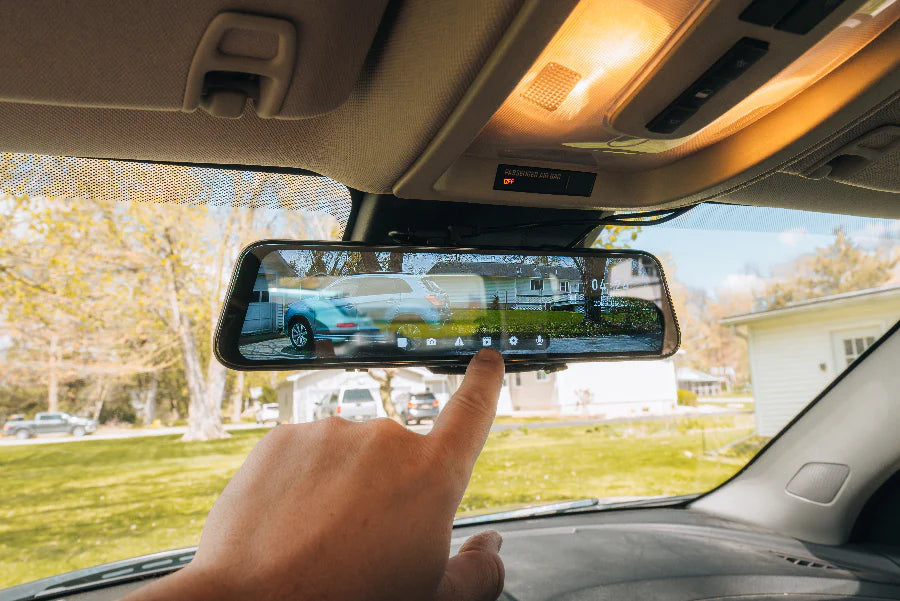
Quick checks to confirm recording while driving
Do these fast checks before and during a trip to confirm your dash cam is recording while driving.
- Check the LED status light: A steady red or blue light typically indicates recording. If the light is off or flashing irregularly, stop and investigate.
- Open the companion app: Look for a live feed, a red recording icon, or elapsed time. The app is often the fastest confirmation.
- Use short playback: After a minute of driving, stop safely and play the last 30–60 seconds. If video is shown, the dash cam is recording while driving.
- Listen for sounds: Many dash cams beep when recording starts or when events are saved. Those beeps are useful cues that the device is active.
- Inspect the memory card icon: Some units display a card or file icon when writing video. If that icon appears while driving, recording is occurring.
These checks are simple and quick to perform. I usually test the app and LED each morning to avoid surprises on the road.
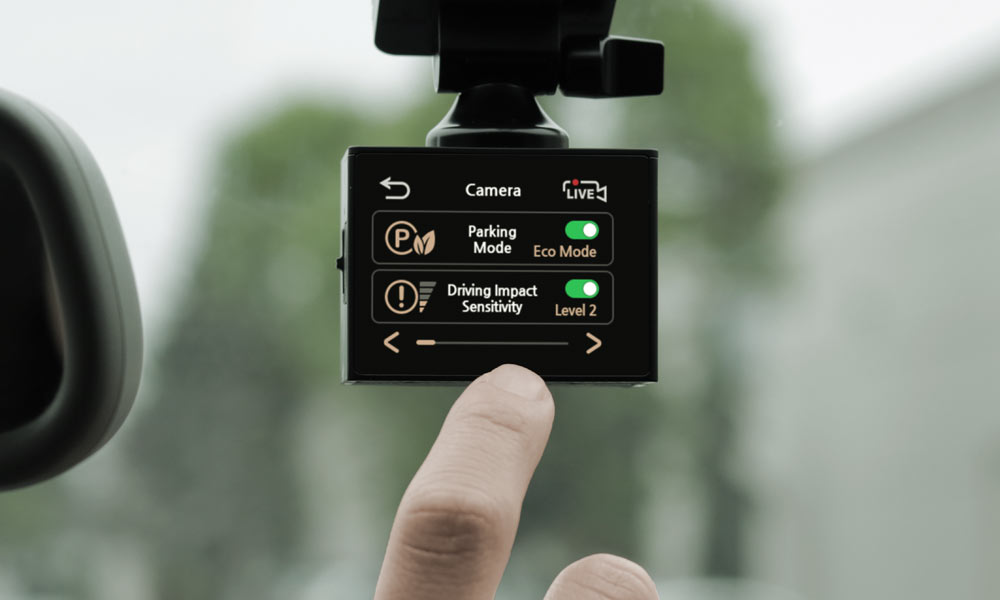
Common issues that make a dash cam appear not to record and how to fix them
You might think your dash cam isn’t recording while driving when the real problem is small and fixable. Here are frequent causes and easy remedies.
- Power problems: Loose cables or bad car adapters prevent recording. Swap cables, ensure the USB plug is tight, and try a different power source.
- Full or corrupted memory card: A full card stops new video files. Format the card in-camera, replace with a high-quality card, and use the recommended class and capacity.
- App connection drops: Weak Wi‑Fi or Bluetooth can show false offline status. Reboot your phone, re-pair the device, or move closer to the dash cam.
- Incorrect settings: Event recording or motion-only modes can limit footage. Check recording settings and set continuous recording if you want constant capture.
- Firmware bugs: Outdated firmware can cause status errors. Update the dash cam firmware to the latest stable release following the manufacturer’s instructions.
I once blamed a dash cam for not recording while driving, only to find the card was locked. That quick fix saved a lot of worry. Regular checks prevent lost footage.
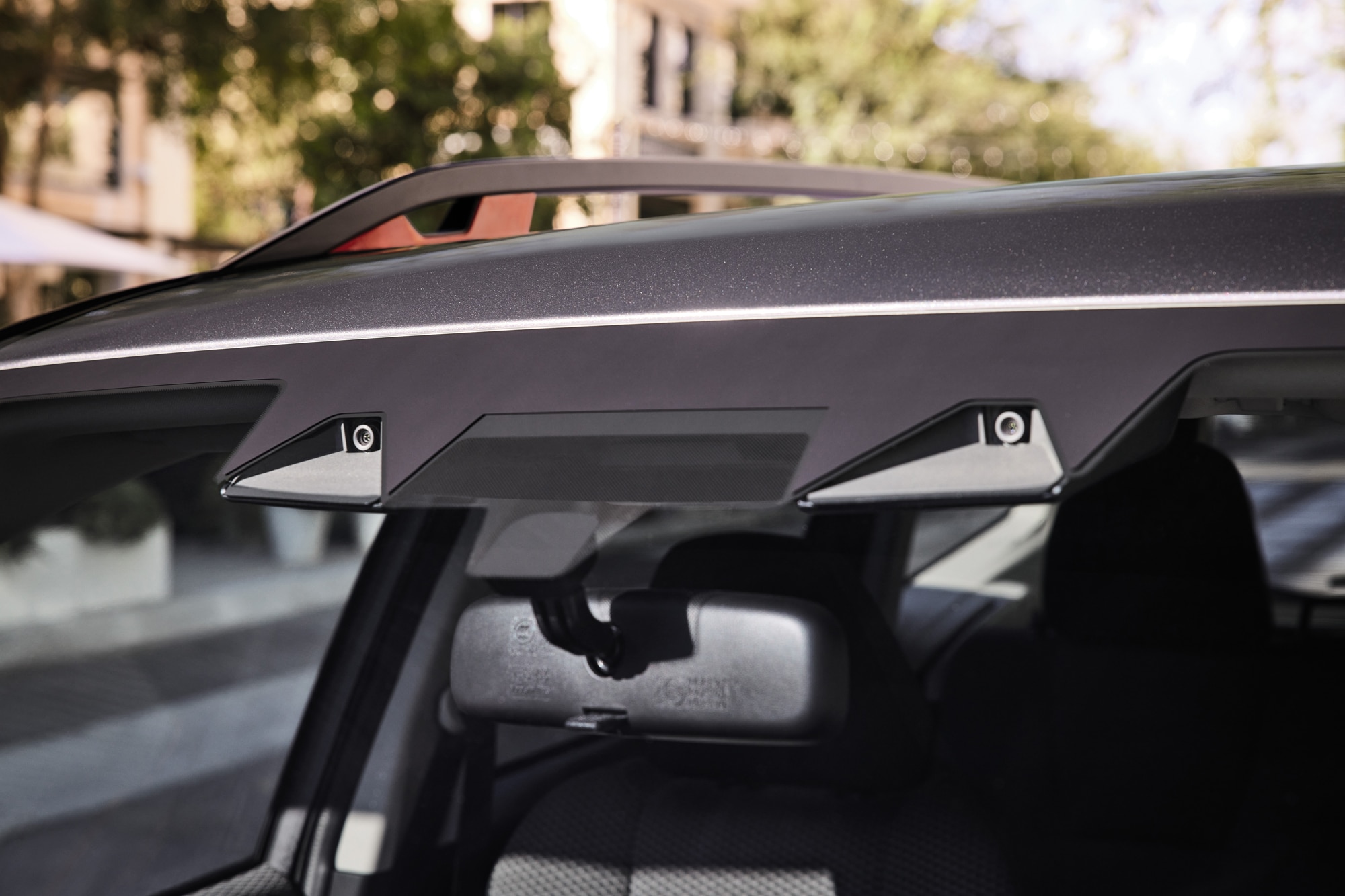
Best practices to ensure your dash cam is recording while driving
Follow these practical routines so you never drive unsure whether your dash cam is recording while driving.
- Start-of-trip routine: Check LED, confirm app shows live feed, and verify timestamp for 30 seconds. This takes under a minute and gives peace of mind.
- Use high-quality memory cards: Buy a dash cam–rated card and format it in the camera monthly. This reduces corruption and recording pauses.
- Keep firmware current: Check for firmware updates monthly and apply them when parked. Updates often fix recording or stability issues.
- Secure power wiring: Use a dedicated hardwire kit or tested adapter to avoid accidental unplugging. A stable power source keeps the camera recording while driving.
- Set event priorities: Configure event lock times and overwrite settings so important clips aren’t erased. This ensures footage you need stays safe.
These habits helped me avoid losing key footage during a collision once. Small routines mean big reliability.
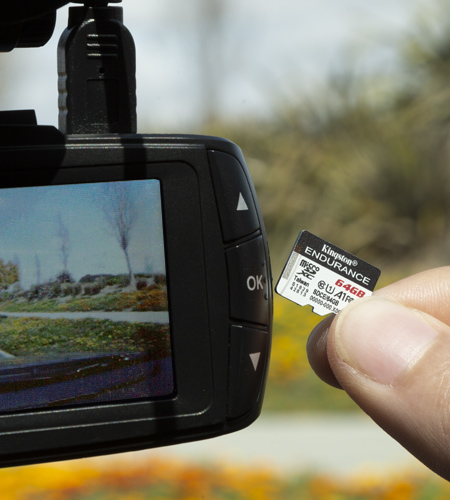
Personal tips and real-world examples
I’ve used several dash cams across different cars and climates. These are the hands-on tips I learned that made checking how to know if dash cam is recording while driving fast and reliable.
- Keep a visible LED: I prefer units with a bright, front-facing LED. In bright sun, subtle lights are hard to see, so visibility matters.
- Run a five-minute test route: New installs should be tested on a short drive to confirm consistent recording while driving. Playback the clip immediately to verify.
- Label your microSD cards: I keep two cards labeled for weekdays and weekends. That way I swap and test quickly when needed.
- Note startup behavior: Some cams take a few seconds to begin recording after ignition. If you need capture from engine start, choose a model that starts immediately.
- Use cloud backups for peace of mind: If possible, enable cloud uploads for critical clips. It helps when the card gets damaged or lost.
One snowy morning my dash cam seemed not to record while driving. The app showed no feed, but playback revealed the card had been overwritten due to wrong loop settings. Since then I keep loop length and overwrite settings conservative. I realized the importance of understanding how my dash cam functions, so I researched further and found an article titled ‘smart loop recording explained.’ This helped clarify how loop recording can prevent critical footage from being lost, particularly during unexpected events. Now, I’m more confident in managing my settings to ensure that I always capture the important moments.
Frequently Asked Questions of how to know if dash cam is recording while driving
How can I tell if my dash cam is recording while driving without the app?
Look for a steady recording LED or an on-screen REC icon. Stop safely and play back the last minute to confirm footage is saved.
My dash cam shows a blinking light. Is it recording while driving?
A blinking light often means standby, error, or formatting. Check the manual and the app to determine the exact status and resolve the issue.
Will my dash cam keep recording while driving if the car is off?
Only if it has a hardwire kit or battery bump that supports parking mode. Otherwise most dash cams stop recording when the car power is off.
What if the dash cam is recording but the video is corrupted?
Try reformatting the card in-camera and using a new high-quality microSD card. If corruption persists, update firmware and test with a different card.
How soon should I check playback to confirm recording while driving?
Pause in a safe place after a minute or two of driving and play back 30–60 seconds. That quick check confirms continuous recording and saves time later.
Can audio indicate that the dash cam is recording while driving?
Yes, many units beep when recording starts and when events are locked. However, beeps can be muted, so rely on visual checks and playback for certainty.
Conclusion
Knowing how to know if dash cam is recording while driving comes down to a few quick checks: watch the LED, use the app, and test playback. Use good cards, keep firmware updated, and follow a short start-of-trip routine to avoid lost footage. Take these steps today to make sure your next drive is captured and protected. If you found this useful, try the start-of-trip routine now, subscribe for more car tech tips, or leave a comment with your dash cam model and questions.

