


Most dash cams show GPS via settings, labels, or GPS data embedded in video files.
As a tech reviewer and long-time dash cam user, I’ll walk you through clear, hands-on ways to confirm whether your unit records GPS. I cover model checks, menu and app inspection, file analysis, test drives, wiring clues, and privacy tips so you can know for sure how to check if my dash cam has GPS tracking and act on the results. Read on for practical steps and tools I use in the field.
Read Related: How Dash Cam GPS Tracking Works: Simple Guide 2025 One common challenge users face is GPS signal issues for dash cams, which can lead to inaccuracies in tracking and recording. Factors like tall buildings, dense foliage, or adverse weather conditions can interfere with the satellite signals. To improve performance, consider mounting your dash cam in a location with a clear view of the sky.
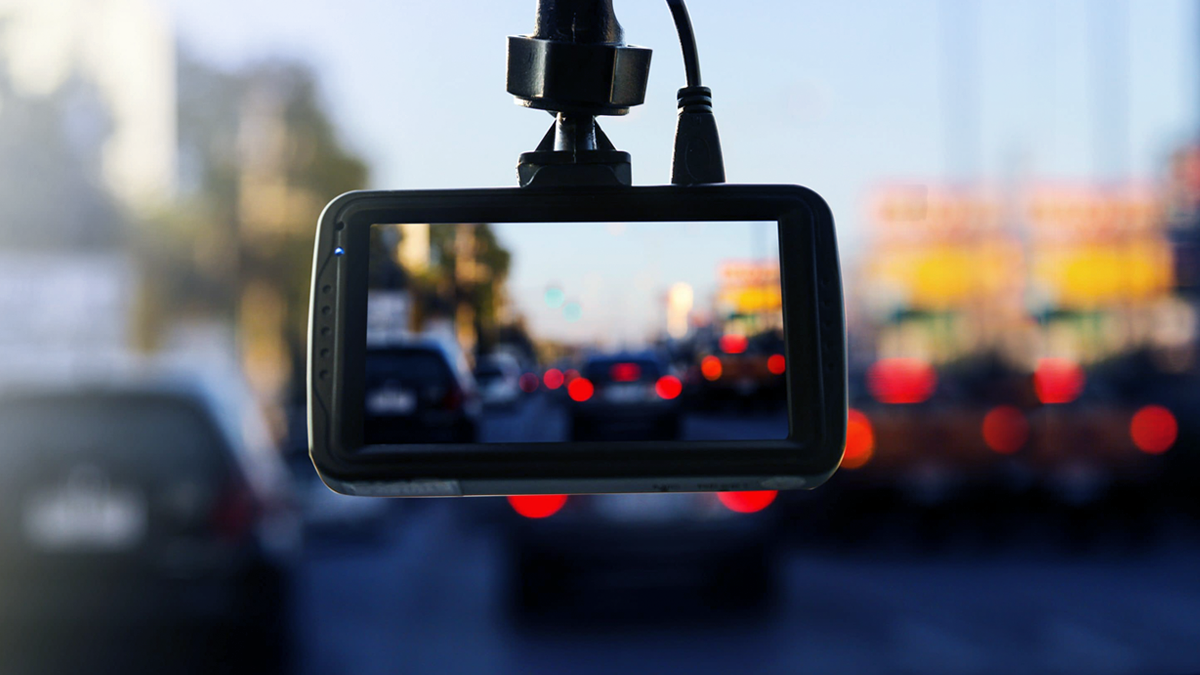
How to check if my dash cam has GPS tracking — check the model and specs
Start by checking the model name and paper or online manual. Most makers list GPS in the specs. The box or product page often says “GPS” or “GPS logger.” If the spec sheet lists GPS, then your dash cam has built-in tracking.
Look for key terms in specs such as GPS, GLONASS, GPS logger, GPS antenna, or location data. If a model name has “GPS” in it, that is a clear sign. If the manual is unclear, contact support or search the model number plus “GPS” online.

How to check if my dash cam has GPS tracking — inspect settings, menus, and app
Turn the camera on and open its menu. Look for GPS, Location, Time Sync, or Speed Overlay settings. Many dash cams let you toggle GPS logging or show speed and coordinates on screen.
If the camera pairs with a phone app, open the app and check device info or live view. Apps often display GPS status or a map. If you see map pins, coordinates, or “tracking on,” that confirms GPS tracking.
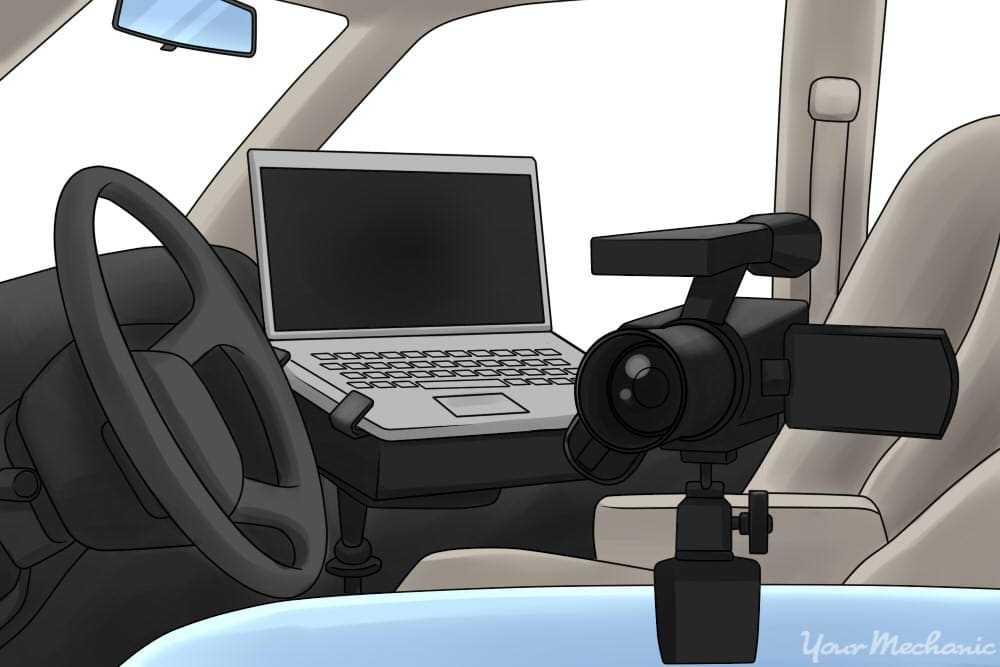
How to check if my dash cam has GPS tracking — examine recorded files and metadata
Play back a recorded clip on the dash cam or a PC. Watch for a speed readout, coordinates, or a small map overlay. These on-screen elements usually mean GPS data is recorded.
If there’s no overlay, check the video file for embedded GPS data. Use a simple tool like a media player or GPS viewer. Open the file with software that reads metadata or EXIF. If you find latitude and longitude values, your dash cam has GPS tracking.
Tools I use:
- VLC to check stream metadata quickly
- A GPS metadata reader or GPS Visualizer to view coordinate tracks
- Manufacturer PC apps that export GPX or KML files
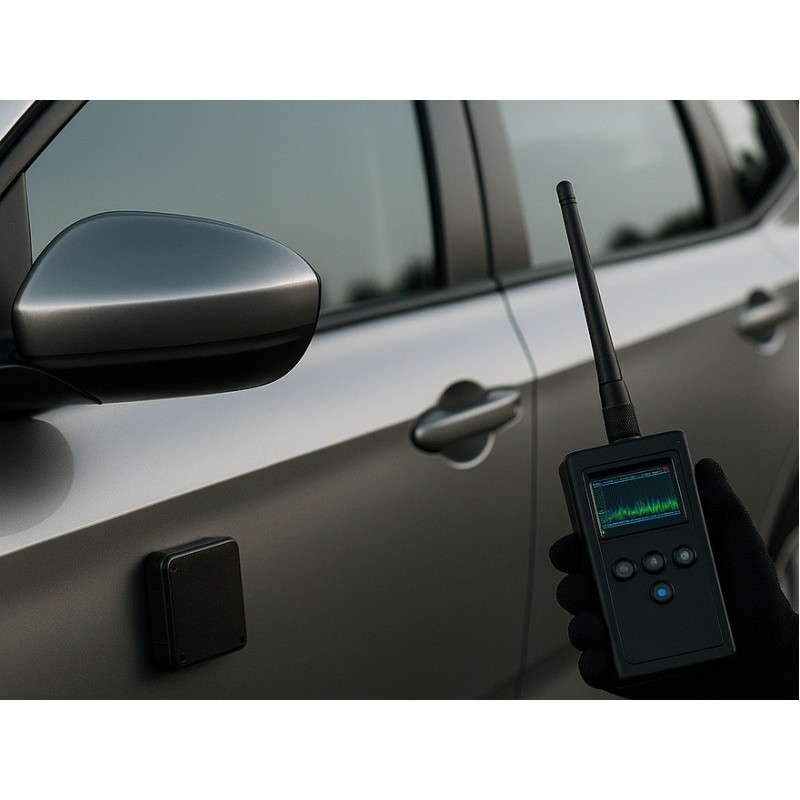
How to check if my dash cam has GPS tracking — inspect the hardware and wiring
Some dash cams use an external GPS puck or antenna. Look for a small round or rectangular module with a cable. Check the camera’s ports for a labeled GPS or antenna input.
Open the cigarette lighter area or hardwire kit and look for a separate GPS lead. If you see a small inline module on the wire or a labeled connector on the unit, the system uses GPS. Some internal antennas leave no visible parts, so this check pairs well with other methods.
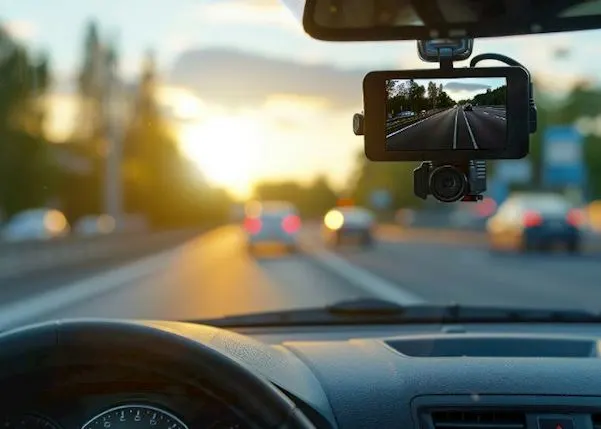
How to check if my dash cam has GPS tracking — perform a simple test drive
Drive for a few minutes with the dash cam on and make clear location changes. Then play back the file and look for speed or map overlay. If the video shows speed changes and coordinates, GPS tracking works.
If the camera exports route files, upload them to a map viewer. A matching route proves GPS logging. If nothing appears, try enabling location options in settings and repeat the test.

How to check if my dash cam has GPS tracking — use apps and third-party software
Install the maker’s PC or phone app. Many apps connect and show an actual map trace. Export a GPX or KML file if the app supports it, then open it in any map tool.
If the manufacturer app is missing or limited, use third-party tools to read GPS from the video. These apps can extract coordinates embedded in the file and plot them on a map. This method is great when no overlay appears on playback.

How to check if my dash cam has GPS tracking — common signs that mean no GPS
If none of the checks show coordinates, your dash cam likely lacks GPS. Signs include no GPS menu, no external module, no speed overlay, and no exported route files.
Some models hide GPS behind paid firmware or subscriptions. Check the manual and contact support to confirm if GPS is a locked feature. If your unit is older, it might not support GPS at all.
Privacy, legal, and troubleshooting notes
GPS tracking stores location data. Think about privacy before sharing video files. Remove or redact location info when posting online.
Troubleshooting tips:
- Ensure firmware is up to date
- Make sure GPS is enabled in settings
- Give the dash cam a clear view of the sky for a fix
- Reboot or re-pair the app if it won’t show location
Be honest about limits. Urban canyons and tunnels block GPS. Some units need a warm-up time to acquire a reliable signal.

My personal experience and practical tips
I tested several models over years. One unit showed speed but had no exported GPX. Another used a tiny puck under the dash. A common mistake I made was assuming a speed overlay always means GPS. Some cameras estimate speed from wheel sensors or motion. Always confirm by checking metadata or exported files.
Tips I learned:
- Use a test route with known waypoints. It helps you see if the coordinates match.
- Keep a short recording with clear start and end landmarks.
- Back up originals before editing. Metadata can be lost when re-encoding.
Frequently Asked Questions of How to check if my dash cam has GPS tracking
How can I tell if my dash cam records GPS data without opening the unit?
Look for GPS options in the menu, a speed overlay on playback, or a GPS listing in the specs. If none appear, check the exported files for GPS metadata.
Can I extract GPS coordinates from any dash cam video file?
Not always. Only files that embed GPS metadata or come with exported GPX/KML will yield coordinates. Use specialized software to check metadata if unsure.
Is an external GPS puck required for GPS on dash cams?
Some models need an external puck while others have built-in GPS. Check the manual or look for a dedicated GPS port or external module on the wiring.
What should I do if the dash cam says GPS but shows no coordinates?
Update firmware, ensure GPS is enabled, and give the unit a clear sky view. If it still fails, contact support or test with the manufacturer app.
Does GPS tracking drain the dash cam battery faster?
GPS uses a small amount of power. It can slightly drain a battery, especially on hardwire setups. For parked mode, use a low-voltage cut-off or a dedicated parking kit.
Conclusion
You can confirm GPS tracking by checking specs, menus, apps, recorded overlays, metadata, and hardware. Run a short test drive and inspect exported files for coordinates to be sure. Use the practical tools and checks here to verify quickly and safely.
Take action now: check your dash cam model and run a five-minute test route. Share your findings or ask a question below to get tailored help.

