


Insert the micro SD card into the dash cam slot, click gently, then format it before use.
I’ve installed dozens of dash cams and guided many drivers on how to fit micro SD card into dash cam safely and reliably. This guide walks you through every step, from choosing the right card to formatting, inserting, troubleshooting, and care. Read on and you’ll learn clear, tested steps and practical tips so your dash cam records smoothly.
Why the right micro SD card matters
Choosing and installing the right card affects recording quality and reliability. A bad card can corrupt video files or fail mid-drive. Knowing how to fit micro sd card into dash cam starts with picking the right capacity and speed class. I’ll explain what I’ve learned from real installs and testing.
Step-by-step: how to fit micro sd card into dash cam
Follow these simple steps to install a micro SD card the right way. Keep the dash cam powered off before you start. Read each step and follow the notes for best results.
- Find the card slot and orientation
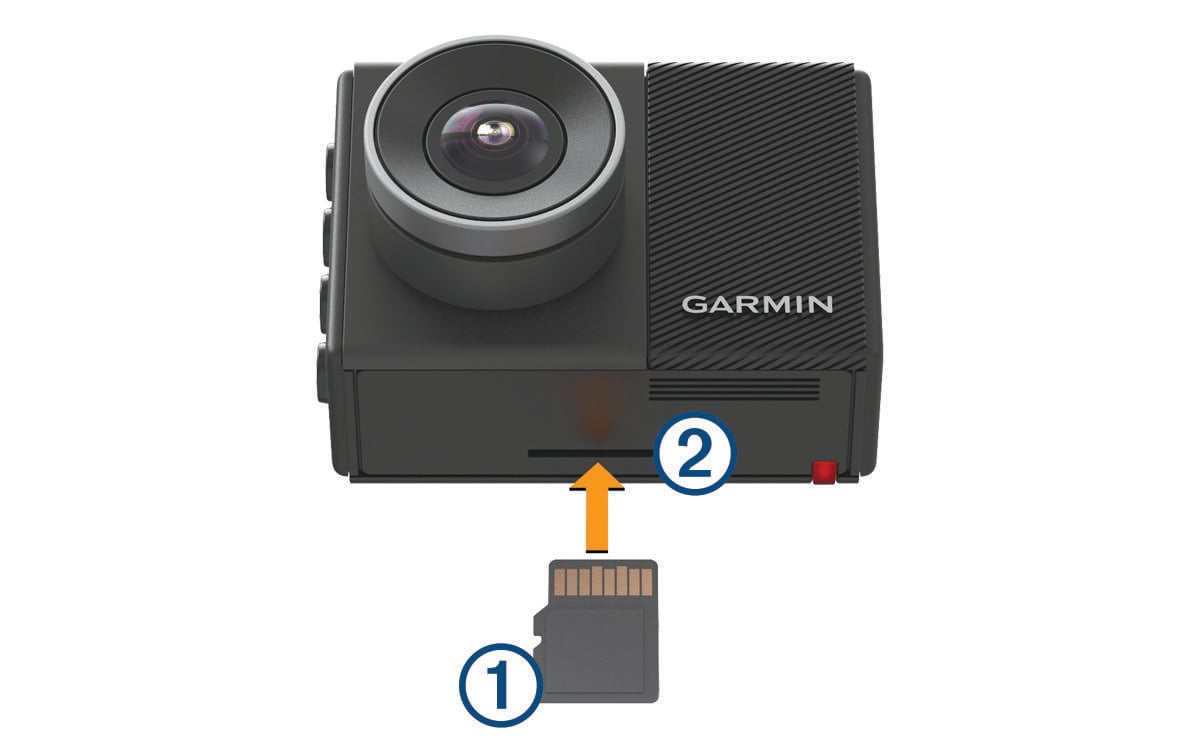
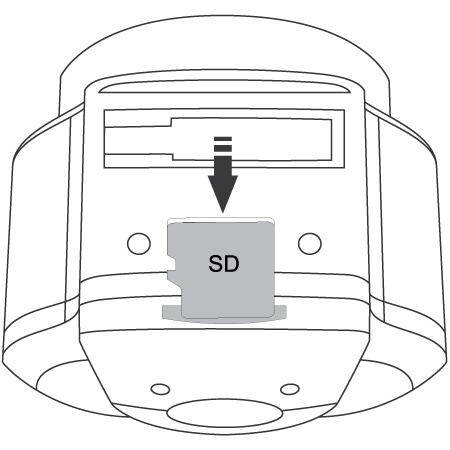
- Locate the micro SD slot on your dash cam. It is usually on the side or under a flap.
- Check the small icon near the slot for the card direction. This prevents bending or damage.
- Prepare the micro SD card
- Use a recommended card type and capacity for your model. This helps the cam work right.
- If the card came with an adapter, remove it before inserting.
- Insert gently until it clicks
- Push the card in gently until you feel a soft click. Don’t force it.
- If it resists, pull out and check orientation again.
- Power on and format
- Turn on the dash cam after insertion. Most cams ask to format new cards.
- Format the card inside the cam to set correct file system and folders.
How you do these steps shows you exactly how to fit micro sd card into dash cam with no surprises. My copies of cams behaved the same way after following this flow.

Preparing and formatting the micro SD card
Proper prep reduces errors and file corruption. Format the card in the dash cam, not on your phone or PC, unless the manual says otherwise. Formatting inside the camera creates the right folder structure and file system for long recordings. Ensuring dash cam compatibility with memory cards is crucial for optimal performance. Check the manufacturer’s guidelines to determine which memory cards are recommended for your specific model. This will help avoid issues such as lagging footage or unexpected file deletions during critical recordings.
- Choose the right file system
- Use FAT32 for cards up to 32GB and exFAT for larger cards if supported by your cam.
- Check your dash cam manual for the supported format.
- Use the dash cam’s format option
- Most cameras have a settings menu with a format or initialize option.
- Formatting erases files, so backup first if needed.
- Test after formatting
- Record a short clip and play it back to confirm the card works.
- This final step confirms you know how to fit micro sd card into dash cam and that it records properly.

Common issues and troubleshooting
Even with care, problems can happen. Here are common issues and fixes I’ve used in the field. These tips will save time and prevent data loss.
- Cam does not recognize the card
- Check orientation and reinsert the card. If it still fails, try another card or format it in the camera.
- Intermittent recording or corruption
- Use a high-endurance card rated for continuous video. Low-cost cards often fail faster.
- Error messages on boot
- Reformat the card in the dash cam. If the error persists, update the camera firmware or replace the card.
- Card gets hot or slows down
- Ensure card meets the speed class your cam needs. High write speeds reduce heat and lag.
When you apply these fixes you get a better grasp of how to fit micro sd card into dash cam and maintain reliable recordings.

Tips for long-term care and best practices
Small habits extend card life and keep footage safe. I do these things after every install and they help avoid headaches.
- Use high-endurance cards for constant recording
- These cards handle many rewrite cycles and last longer.
- Format regularly
- Format the card in the dash cam every 1–3 months to clear file fragments and errors.
- Backup important clips
- Move saved clips to a PC or cloud storage. Don’t let all footage sit only on the card.
- Avoid cheap adapters and counterfeit cards
- Buy from reputable sellers and check capacity and speed claims.
- Keep spare cards on hand
- Swap cards fast if one fails. Learning how to fit micro sd card into dash cam quickly helps in an emergency.
Frequently Asked Questions of how to fit micro sd card into dash cam
How do I know which micro SD card is compatible with my dash cam?
Check the dash cam manual or product page for supported capacities and speed classes. Use cards labeled high-endurance or UHS-I minimum if the manual recommends it.
Should I format the micro SD card on my computer or in the dash cam?
Format the card in the dash cam whenever possible to create the correct folders and file system. Use a computer only if the camera can’t format or requires a specific file system.
What direction should the micro SD card face when inserting?
Look for the small icon or slot shape near the card opening; usually the label side faces away from the screen. If it resists, remove and recheck orientation before forcing it.
My dash cam shows an error after inserting a new card. What should I do?
Power off the cam, remove and reinsert the card correctly, then format it in the camera. If the issue continues, try another card or update the camera firmware.
Can I use any size micro SD card in my dash cam?
No. Dash cams have limits on capacity and file systems. Use sizes recommended by the manufacturer and confirm support for cards above 32GB if needed.
Conclusion
You now have clear, tested steps to choose, insert, format, troubleshoot, and care for a micro SD card in your dash cam. With the right card and these habits, your dash cam will record reliably and keep important footage safe. Try these steps the next time you install a dash cam, and leave a comment below if you run into problems or want model-specific tips.

