

Check power, LED indicators, recorded files, and SD card playback to confirm proper operation.
I’ve tested many dash cams over years and helped friends troubleshoot theirs. This guide explains exactly how to know if your dash cam is working. You’ll get clear, practical checks, simple tests to run right now, and real-world tips from my experience so you can trust the footage if you need it.
How dash cams work and why basic checks matter
A dash cam records video continuously while your car is powered. It saves clips to an SD card and often shows a power LED or a startup screen. Knowing the normal startup behavior helps you spot failures quickly.
How do I know if my dash cam is working? Watch for power signs, a recording light or icon, and recent files on the SD card. If these are missing, the camera might not be recording even if it powers on.
Dash cams may also use parking mode, G-sensors, GPS, or Wi-Fi. Each feature has its own indicators and tests. I’ll walk you through each one so you can check everything step by step.
Quick checklist: 12 fast ways to confirm your dash cam is working
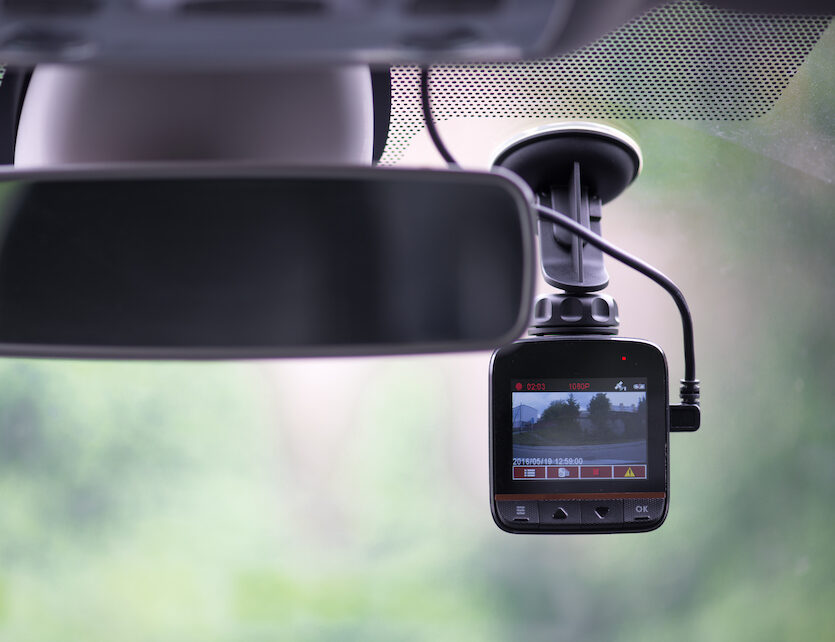
Run this short checklist before or after a drive. These are the fastest signs a dash cam is recording. Look for a small indicator light on the dash cam itself; if it’s blinking or solid, that’s a good sign that it’s actively recording. Additionally, you can consult the user manual for your specific model, which often includes a straightforward guide on how to check dash cam recording. Finally, reviewing the saved footage periodically ensures that the camera is functioning correctly and capturing important moments on the road.
- Power on and startup tone or screen. Confirm the cam boots when ignition turns on.
- Recording light or blinking LED. Look for a steady or blinking red light while driving.
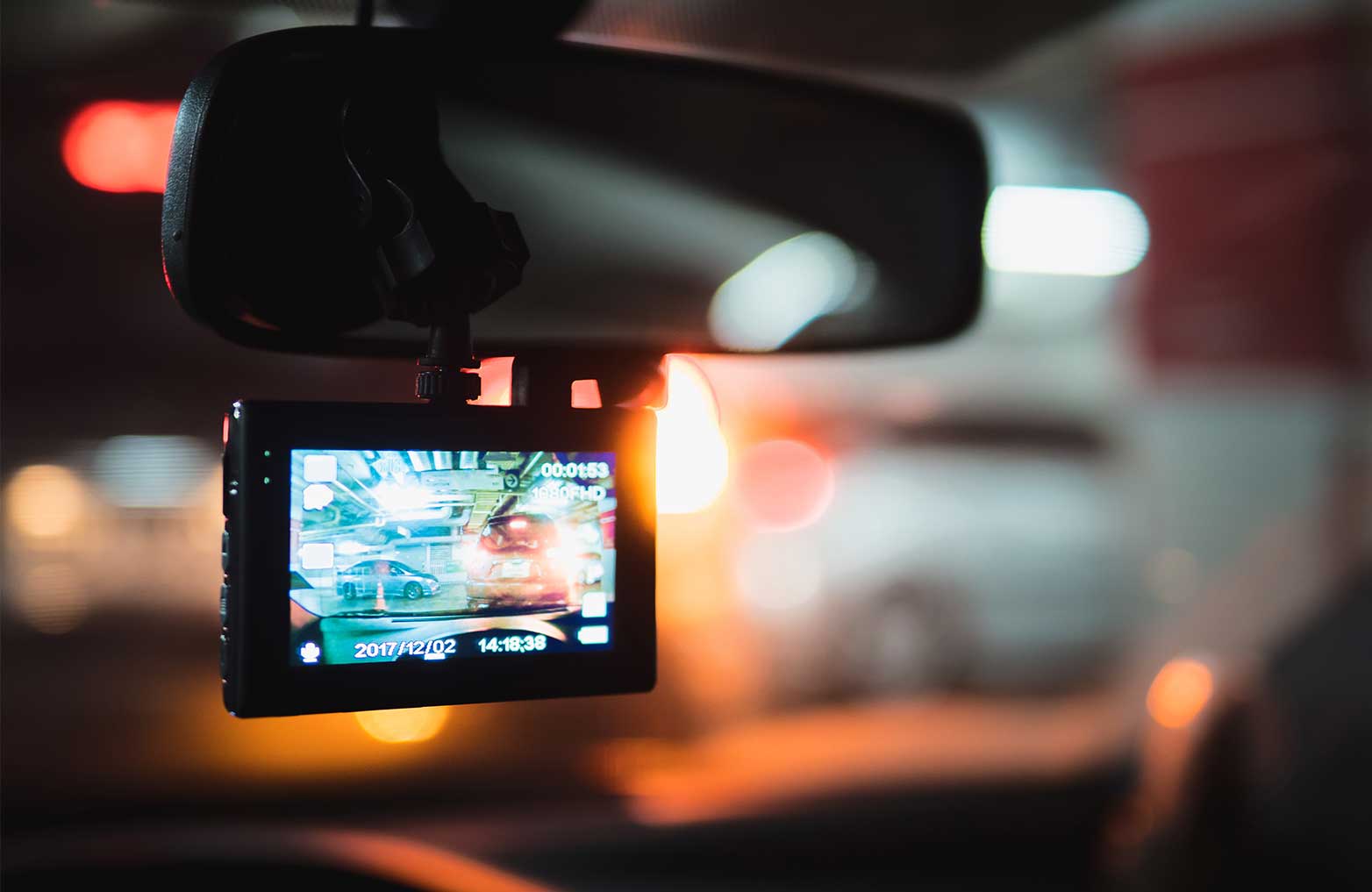
- Timestamp and date visible in live view or files. Correct time means GPS or clock is set.
- Recent video files on the SD card. Check file dates to ensure new clips exist.
- Playback on the dash cam screen. Play a short clip directly on the device.
- Playback on a computer or phone. Transfer a file and play it back to confirm integrity.
- File length and loop recording. Clips should match loop length (1, 3, or 5 minutes).
- G-sensor event files. Trigger an event by a quick brake and check for saved clips.
- Parking mode triggers. Move near the parked car to create a motion event if available.
- GPS data in videos. Look for speed or coordinates overlay if your model has GPS.
- Wi-Fi connection to the dash cam app. Confirm live view and file downloads work.
- SD card health and free space. Check for errors and available capacity.
How do I know if my dash cam is working? If most items on this list pass, you can trust the camera to capture incidents.
How to test recording and playback step-by-step
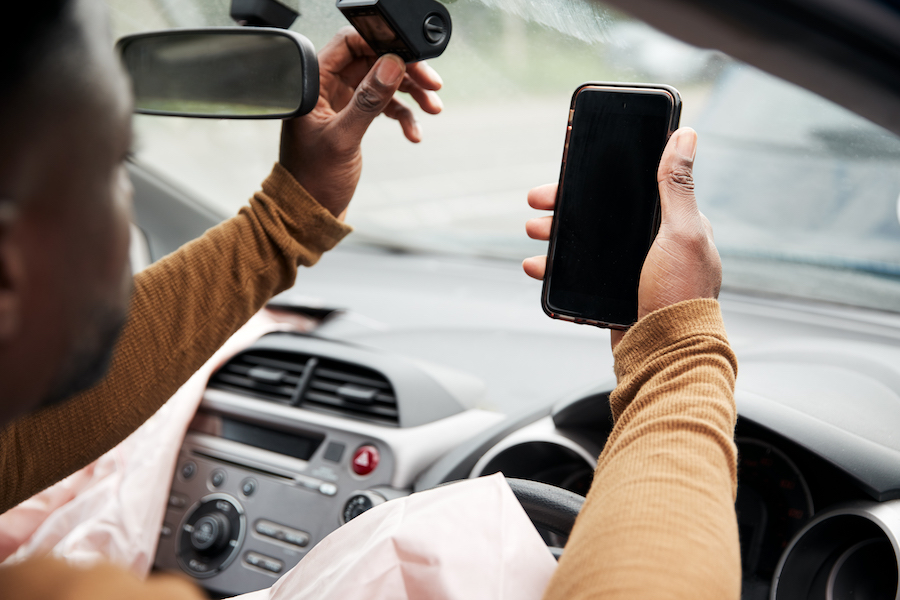
Testing recording is simple. Do these steps before you rely on the cam for an important trip.
- Start the car and wait for the dash cam to boot. Note any startup message or tone.
- Drive a short route for 5 minutes. Make a few intentional events like a hard brake or turn.
- Stop the car and power down. Remove the SD card or connect the dash cam to a computer.
- Play the latest files in order. Confirm video is smooth and the events are present.
How do I know if my dash cam is working? If files are missing or corrupt, try reformatting the SD card in the camera and repeat the test. I once found a camera that showed recording but produced zero-byte files; swapping the card solved it.

Checking SD card and storage issues
The SD card is the most common failure point. Use these quick steps.
- Check SD card class and capacity. Use recommended cards like Class 10 or UHS-I.
- Format the card in the camera, not a PC, to avoid compatibility issues.
- Watch for corrupted files or write errors. These show up as broken videos or error messages.
- Replace the card if it’s older than a year with heavy use. Cards wear out over time.
How do I know if my dash cam is working? A fresh, correctly formatted SD card almost always fixes mysterious recording problems. I keep a spare pre-formatted card in my glove box for quick swaps.

Power, wiring, and startup behavior to check
Power issues often look like non-recording. Here’s how to troubleshoot.
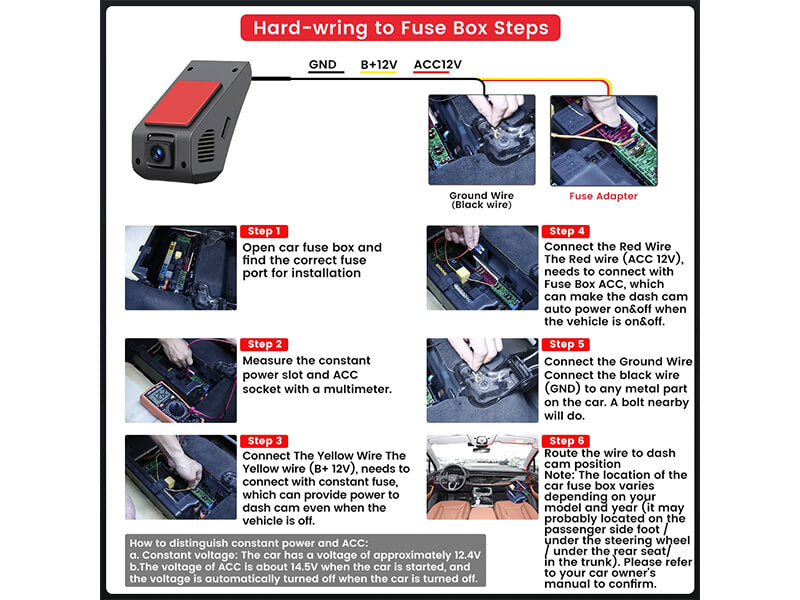
- Confirm the camera powers on with ignition. Some cams need constant power adapters for parking mode.
- Check the fuse and cigarette lighter socket. Loose power leads can cause intermittent recording.
- Inspect hardwire kits for loose connections. A poor ground can cause reboot loops.
- Note startup time. If the cam takes too long to boot, it may miss short trips.
How do I know if my dash cam is working? If the cam never fully boots or reboots while driving, it isn’t recording reliably. I’ve fixed several cams by simply reseating the power connector.
Testing advanced features: parking mode, G-sensor, GPS, and Wi‑Fi
These features add value but need specific checks.
- Parking mode: Arm the mode (hardwire or battery pack) and nudge the car to trigger an event. Check parked clips.
- G-sensor: Create a controlled bump or hard brake and verify an emergency file is saved separately.
- GPS: Drive a short route and open a video overlay to see speed and coordinates logged.
- Wi‑Fi and app: Connect the app, view live feed, and download a file to confirm remote access.
How do I know if my dash cam is working? Advanced features often reveal themselves in the recorded metadata. If GPS or G-sensor data is missing, update firmware or check settings.
Troubleshooting common problems and quick fixes
Problems happen. Use these quick remedies before calling support.
- Camera powers on but no recording: Check SD card, reformat, or replace the card.
- Files are corrupted: Reformat the card and test with short recordings.
- Camera reboots randomly: Inspect power cable and ground. Try a different power source.
- No parking recordings: Confirm hardwire kit and parking mode settings are enabled.
- No sound or timestamp wrong: Check settings and ensure firmware is up to date.
How do I know if my dash cam is working? If troubleshooting fails, reset the device to factory settings and test again. If issues persist, contact support or consider a replacement.

Maintenance and best practices to keep your dash cam working
Small habits extend camera life and reliability.
- Format the SD card in-camera monthly. This prevents file corruption over time.
- Keep firmware updated. Updates fix bugs and improve stability.
- Use a high-quality power adapter and cable. Cheap parts cause voltage drops and reboots.
- Store a spare, pre-formatted SD card in your car. Swap instantly if you suspect an issue.
- Check recordings after long trips. Spot problems early before you need footage.
How do I know if my dash cam is working? Regular checks and simple upkeep are the best insurance. From my testing, cameras that get routine attention fail far less.
Frequently Asked Questions of How do I know if my dash cam is working?
How do I know if my dash cam is recording?
Look for a recording LED, a visible timer or icon on the screen, and new video files on the SD card after driving. Play back the latest file to verify the content is intact.
My dash cam powers on but no files are saved. What should I do?
Format the SD card in the camera and replace it if problems continue. Also check that loop recording is enabled and storage is not full.
How can I test parking mode or motion detection?
Arm parking mode, then walk past or gently tap the parked car to trigger a recording. Check the event folder or timestamps to confirm the clip was saved.
Why are my dash cam files corrupted or not playing?
Corruption often comes from faulty SD cards or sudden power loss. Reformat the card, use a recommended card brand, and ensure the camera shuts down cleanly.
How do I check if GPS and G-sensor data are working?
Drive a short route, then view the clip’s overlay for speed or coordinates and check event files for G-sensor markers. Many apps show a map or sensor logs tied to the video.
My dash cam app won’t connect. What now?
Restart both your phone and the camera, ensure Wi‑Fi is enabled on the cam, and verify the password. If it still fails, update the camera firmware and app.
Conclusion
You can confidently verify a dash cam by checking power, LEDs, recorded files, SD card health, and advanced features like parking mode and GPS. Run the simple tests in this guide after installation and perform monthly checks. Take action now: format or swap the SD card, run a short test drive, and save a known-good clip. If this helped, leave a comment or subscribe for more hands-on car tech tips.

