


Set your dash cam time quickly using the camera menu, GPS sync, or the companion app.
I’ve spent years testing dash cams and helping friends fix settings. This guide shows exactly how do i set time on dash cam in car, step by step, with real tips I learned the hard way. Read on to get your footage timestamp perfect, avoid common mistakes, and sync time reliably across devices.

Why correct time on your dash cam matters
A wrong timestamp can ruin the value of a clip. Accurate time helps with insurance claims, police reports, and proving events in court. Many dash cams drift or reset after power loss, so knowing how do i set time on dash cam in car keeps your logs useful. Good time also helps when you match video to GPS data or other cameras.

Before you start: things to check
Check your dash cam manual and firmware first. Make sure the battery or capacitor holds settings when the car is off. Have your phone, car, or GPS ready if the camera supports sync. Confirm if your camera uses 12-hour or 24-hour format and know your time zone before you change settings.
Check more: How To Feed Dash Cam When Car Is Off: Power Solutions
Step-by-step: how do i set time on dash cam in car (common methods)
Every camera is a bit different, but these steps work for most models. Follow the method that fits your dash cam.
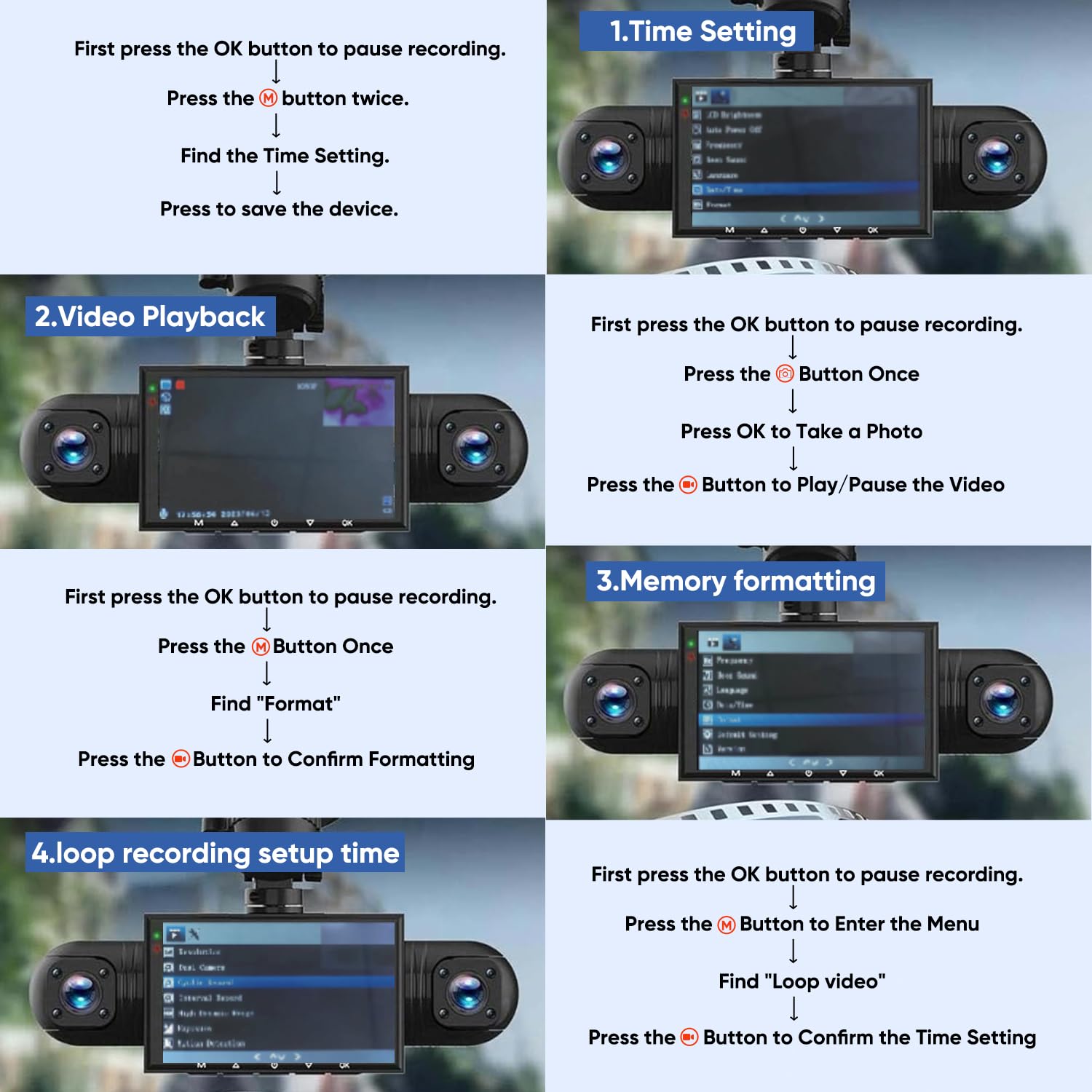
Method 1: Manual menu setting
- Power on the dash cam and open the Settings or System menu.
- Find Date & Time or Clock.
- Set the date, time, time zone, and 12/24-hour format.
- Save and restart the camera to confirm changes.
Method 2: GPS sync (recommended for accuracy)
- Enable GPS in the dash cam settings or attach the external GPS antenna.
- Drive for a few minutes so the GPS gets a fix.
- Select Sync with GPS or Auto time update in the menu.
Method 3: Smartphone or Wi-Fi app
- Connect the dash cam to its app via Wi-Fi or Bluetooth.
- In the app, find Date & Time settings and choose Sync with Phone or Sync with App.
- Confirm the app has correct time and time zone permissions.
Method 4: PC software or SD card edit
- Some brands let you edit the config file on the SD card or use desktop software.
- Export settings, edit the date/time lines, save, and reinsert the card.
- This is advanced—back up files first.
Final checks after setting time
- Record a short clip and check the timestamp in playback.
- Turn off the car and restart to ensure the time persists.
- If time resets, check internal battery or capacitor health.
These steps answer how do i set time on dash cam in car for most users.
src=”https://ezdashcam.com/wp-content/uploads/2024/12/Vantrue-E360-9-1024×420.jpg”
alt=”Syncing with GPS and smartphone: pros and cons”
style=”max-width: 100%; height: auto; border: 2px solid black; border-radius: 10px; display: block; margin: 0 auto;”
loading=”lazy”
/>
Syncing with GPS and smartphone: pros and cons
Each sync method has strengths. GPS gives consistent universal time when it has a fix. Smartphone sync is quick and easy in the parking lot. Choose the method that fits your routine and device abilities.
GPS sync benefits and notes
- Pros: accurate and automatic when driving.
- Cons: needs a good GPS fix; tall buildings can block signals.
Smartphone sync steps and sanity checks
- Pros: fast and works indoors.
- Cons: only as accurate as your phone’s settings. Grant app permissions for best results.
Knowing how do i set time on dash cam in car with GPS or phone will cut errors and confusion.
Read more: How Dash Cam GPS Tracking Works: Simple Guide 2025
Common problems and fixes
Sometimes the time still looks wrong. Here are quick fixes.
Problem: Time resets after power off
- Fix: Replace internal battery or capacitor. Check if firmware update fixes retention.
Problem: Time zone is wrong even after setting time
- Fix: Change the time zone in settings and disable any “auto time zone” if it keeps changing.
Problem: App shows different time than camera
- Fix: Sync phone time, check app permissions, or re-pair the device.
Problem: Daylight Saving Time changes cause errors
- Fix: Turn on auto DST if available, or manually adjust when DST starts or ends.
These tips help if you wonder how do i set time on dash cam in car and still see errors.

Tips and best practices
Small habits keep timestamps reliable and stress-free.
- Keep firmware up to date to fix time bugs.
- Use GPS sync when possible for the most accurate time.
- When recording an important trip, record a short clip of your phone clock or a timestamp sign at the start.
- Label SD cards with the last sync date if you manage many cameras.
- Test your camera after any major update or change in power supply.
Follow these tips to avoid common mistakes when you ask how do i set time on dash cam in car.

Personal experience: mistakes I made and lessons learned
I once trusted a dash cam to keep time after a battery swap. It kept resetting and I lost a clear timeline for an incident. After that I always test a recording and use GPS sync if I need exact time. I also learned to back up files before editing settings or firmware. If you want to know how do i set time on dash cam in car without headaches, test after each change and keep backups.
Frequently Asked Questions of how do i set time on dash cam in car
How do I change the time on my dash cam manually?
Open the camera settings, find Date & Time, and enter the correct date and time. Save and restart the camera, then record a test clip to verify.
Can my dash cam sync time with GPS automatically?
Many dash cams sync time with an internal GPS or external GPS antenna automatically after getting a satellite fix. Enable GPS in settings and drive until the sync completes.
What if my dash cam loses time after engine off?
This often means the internal backup battery or capacitor is failing. Try updating firmware and replacing the unit if the part is not user replaceable.
Does the smartphone app set the dash cam time?
Yes, many apps let you sync the camera with your phone time via Wi-Fi or Bluetooth. Ensure the app has permission to access time and location for best accuracy.
Should I use 12-hour or 24-hour format for dash cam time?
Choose the format you prefer for reading clips, but for official records 24-hour format reduces ambiguity. Either works as long as it’s consistent and accurate.
How do I handle Daylight Saving Time changes?
Enable auto DST if available or manually adjust the clock when DST starts or ends. Test a short recording after changing to confirm correct timestamps.
My dash cam shows the wrong time zone. How do I fix it?
Open Date & Time settings and set the correct time zone, or disable auto time zone and enter the time zone manually. Restart the camera after making changes.
Conclusion
Setting your dash cam time correctly is quick when you know the options. Use manual set, GPS sync, or the companion app depending on your model, and always test a short clip after changing settings. Keep firmware updated, check battery backup, and back up important clips. Now that you know how do i set time on dash cam in car, take a moment to sync and test your camera today—then leave a comment with your camera model or questions and I’ll help.

